Subtitles

Subtitle Editor
Open transcript editor
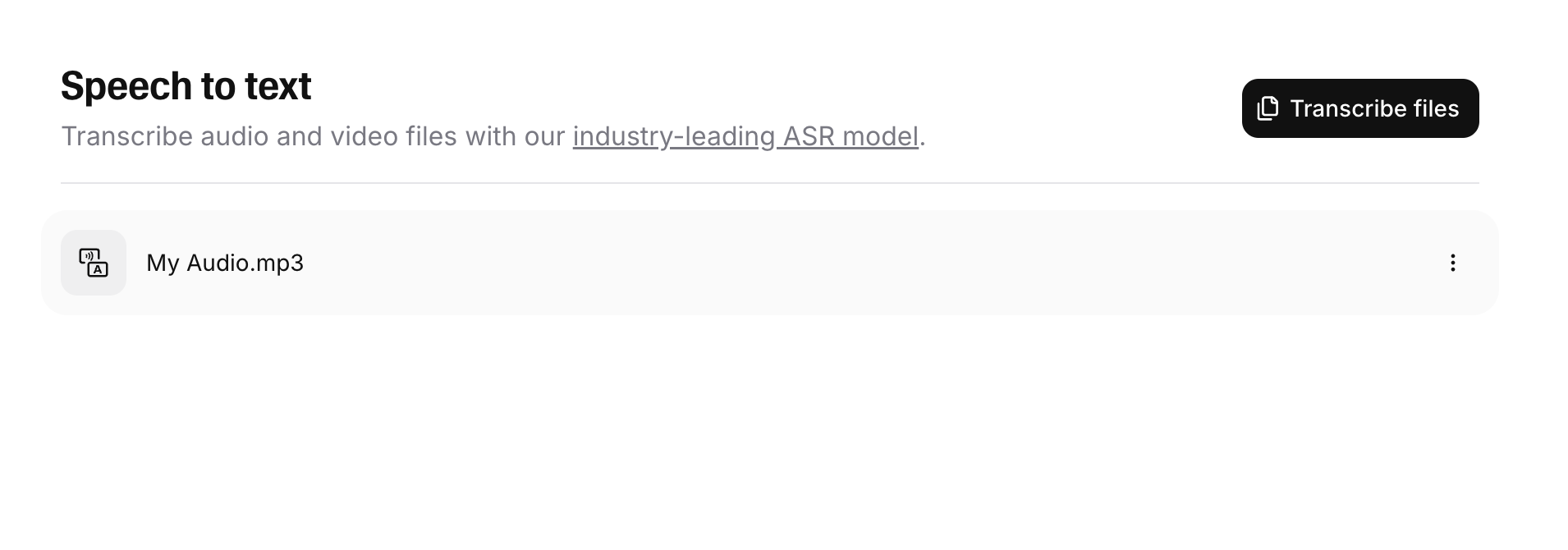
You can use the subtitling mode of our transcript editor to edit your subtitles. Navigate to the Speech to Text page of your ElevenLabs account and click any transcript to get started.
Add subtitles
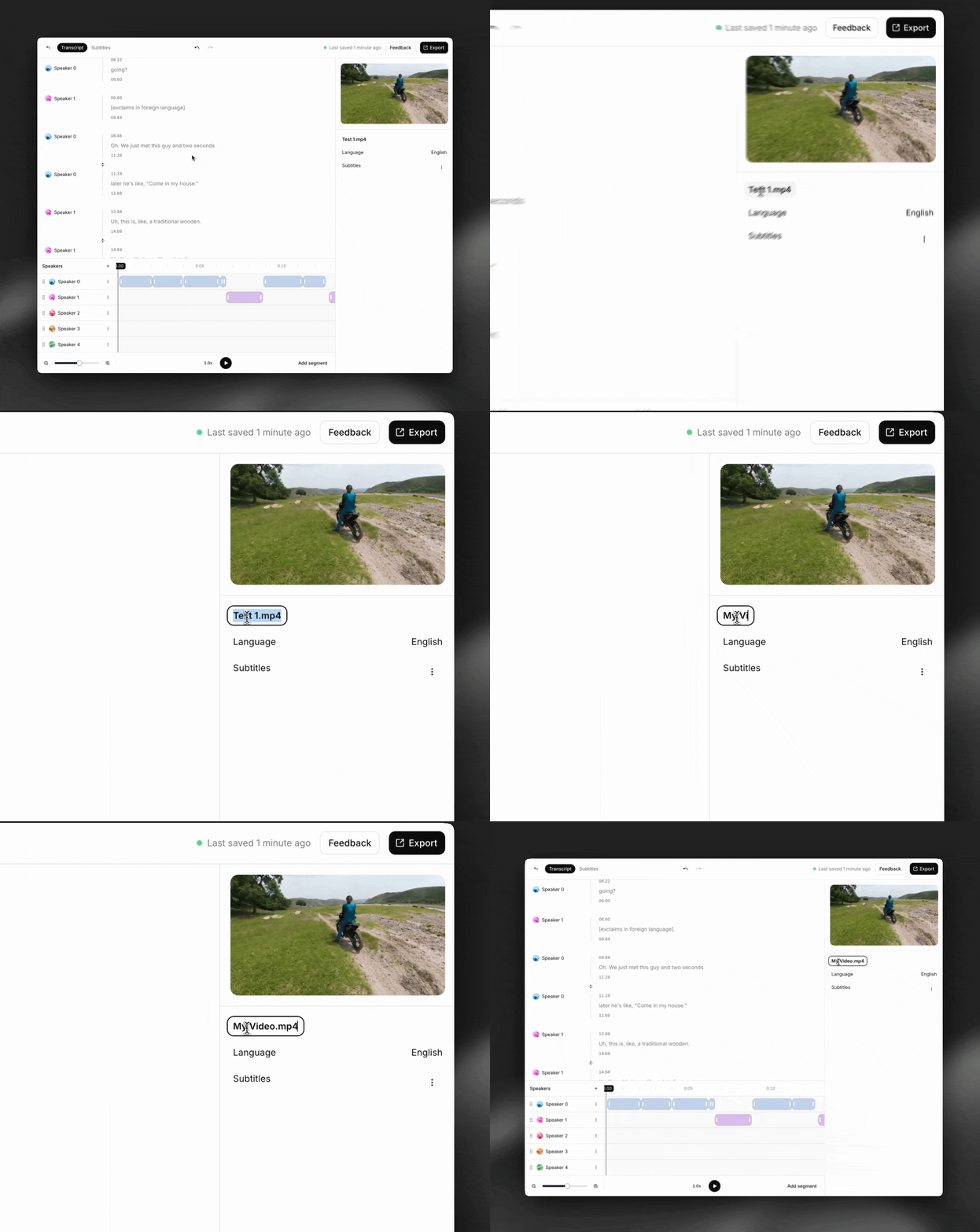
If you didn’t add subtitles when creating the transcript, you can do so by clicking the ”+” next to “Subtitles” in the panel on the right side of the screen. You can switch between transcription and subtitling mode at any time using the tabs at the top of the editor.
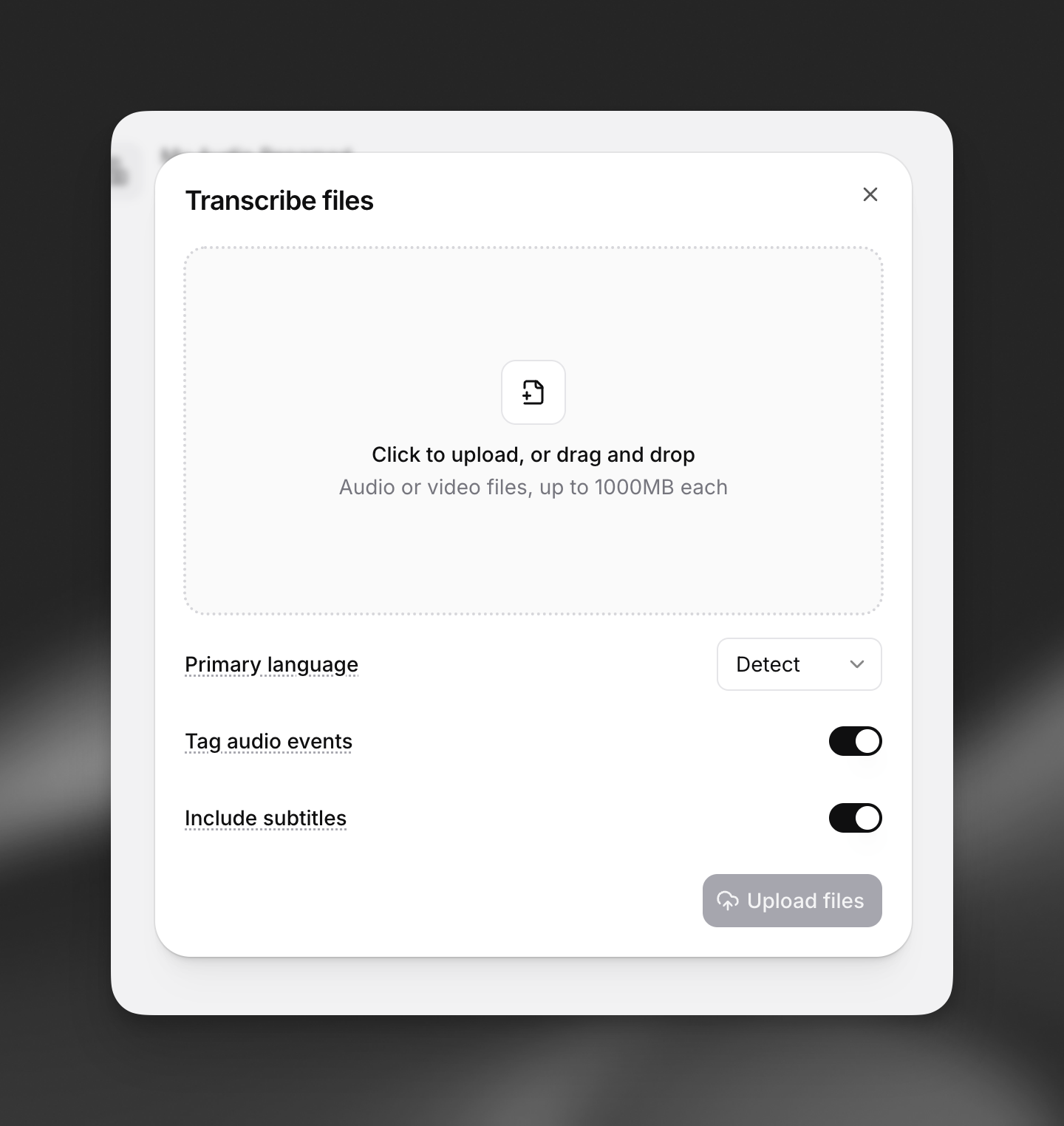
Tip: you can also add subtitles during the transcript creation process by enabling the ‘Include subtitles’ toggle.
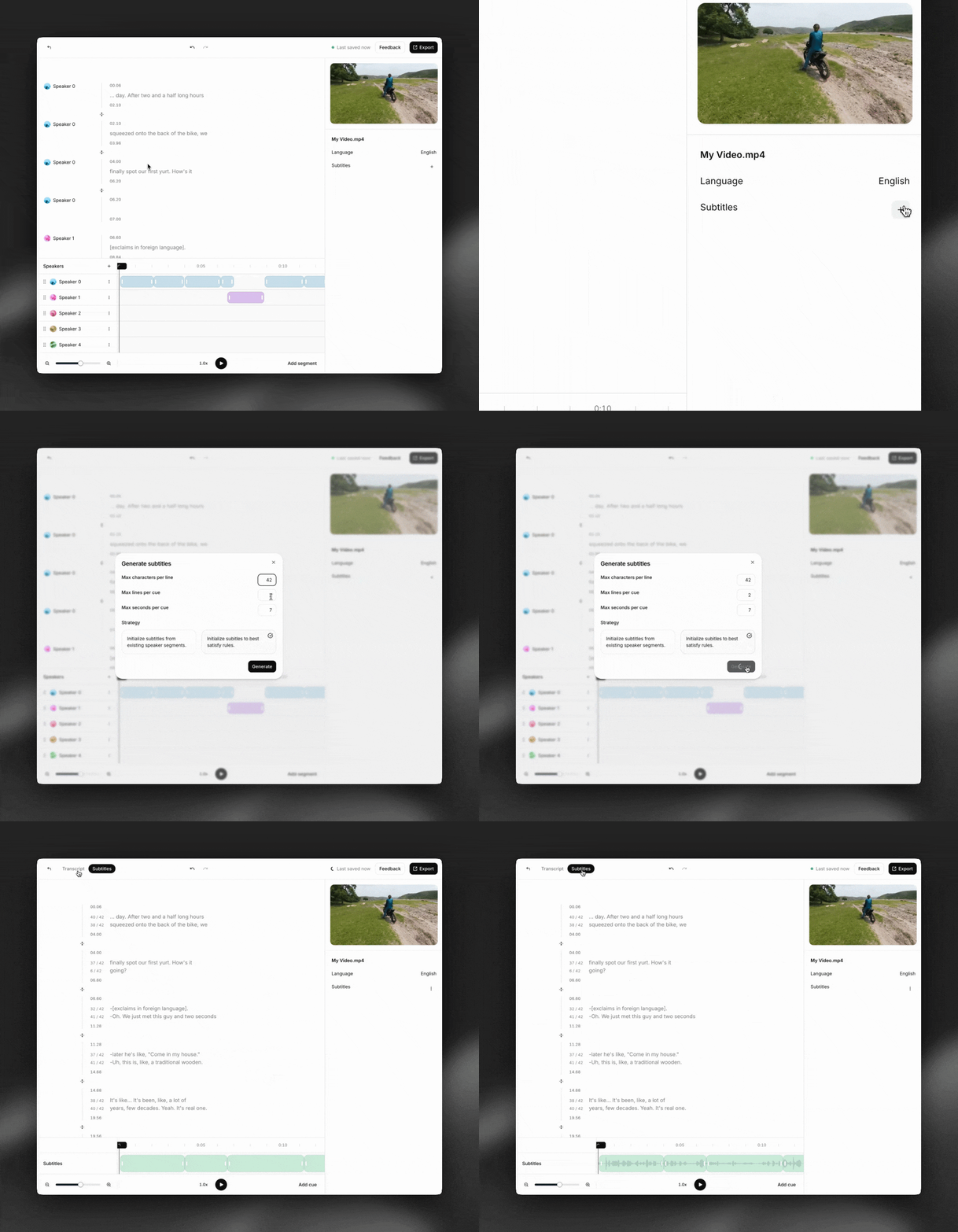
Edit rules/constraints
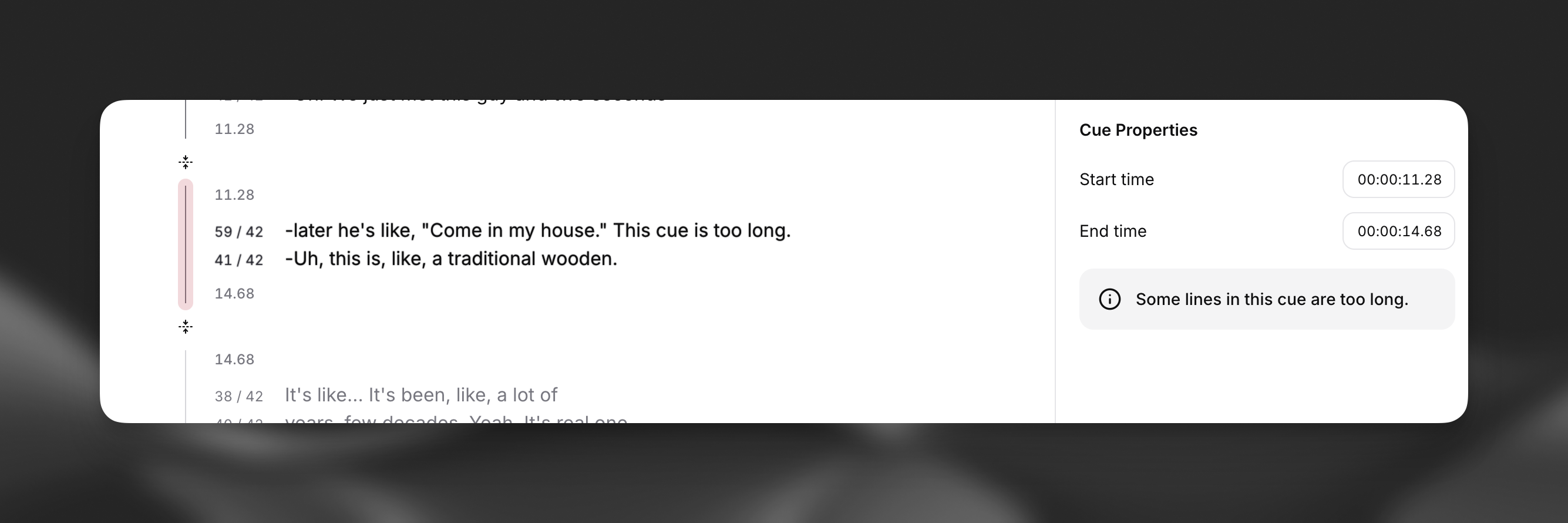
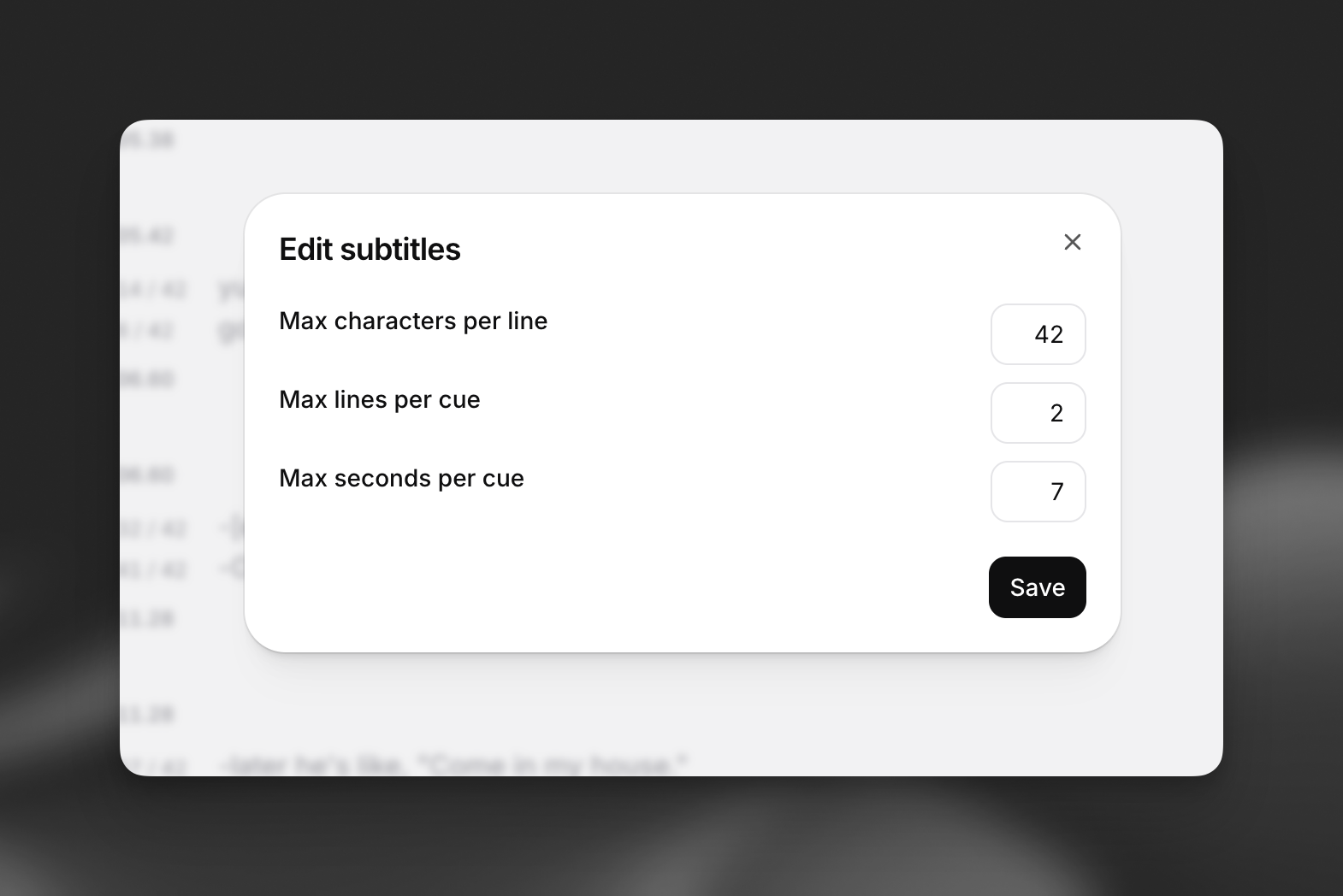
Our subtitle editor uses red and green colors to give you real-time feedback on whether your subtitles respect formatting rules like characters per line, lines on screen, and cue length.
To edit these rules, click the three dots next to ‘Subtitles’ in the panel on the right side of the screen and select ‘Edit rules’
Edit text
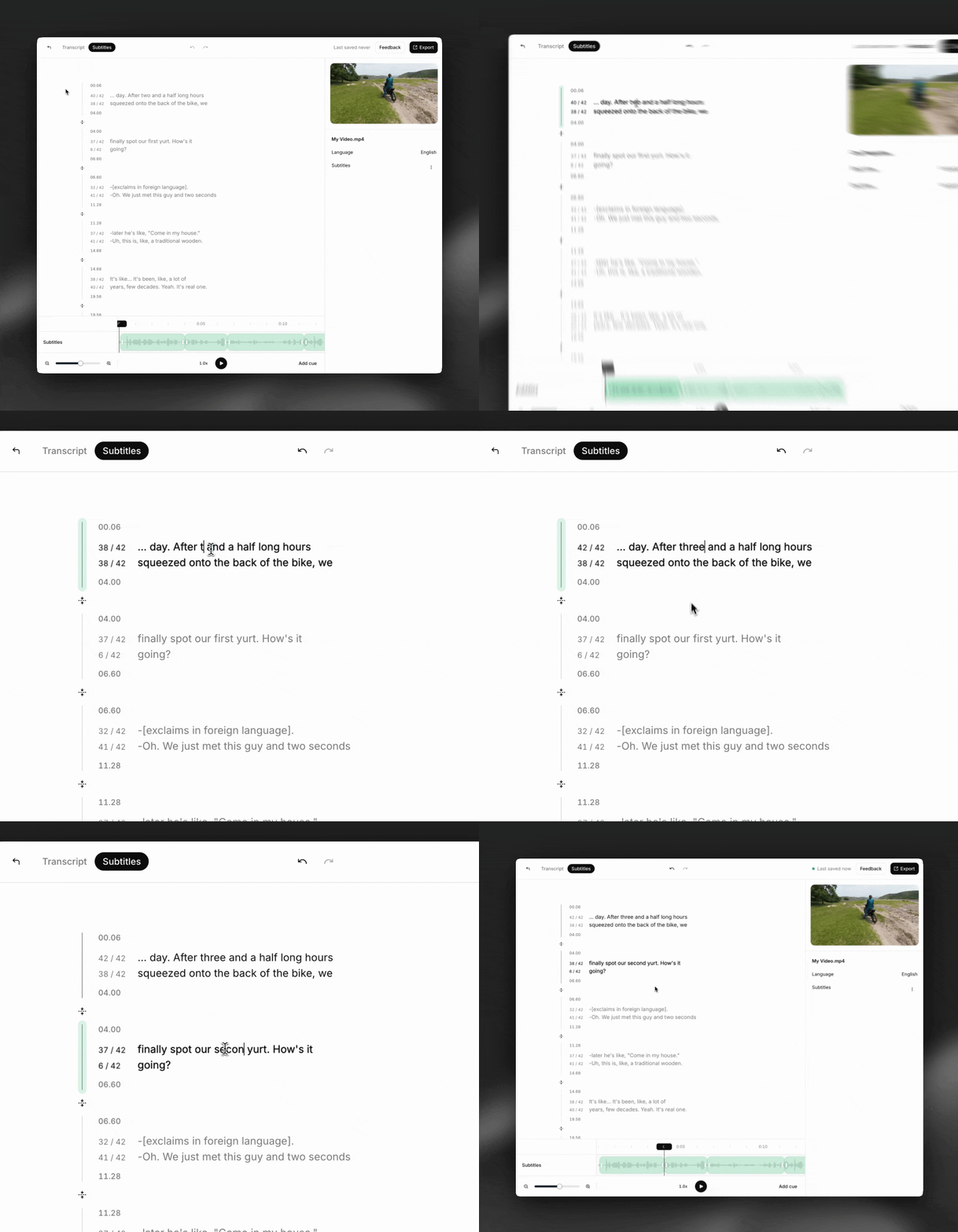
Our subtitle editor is WYSIWYG. Click anywhere and start typing to edit the text.
Tip: Use command+z to undo changes easily.
Adjust cue start and end times
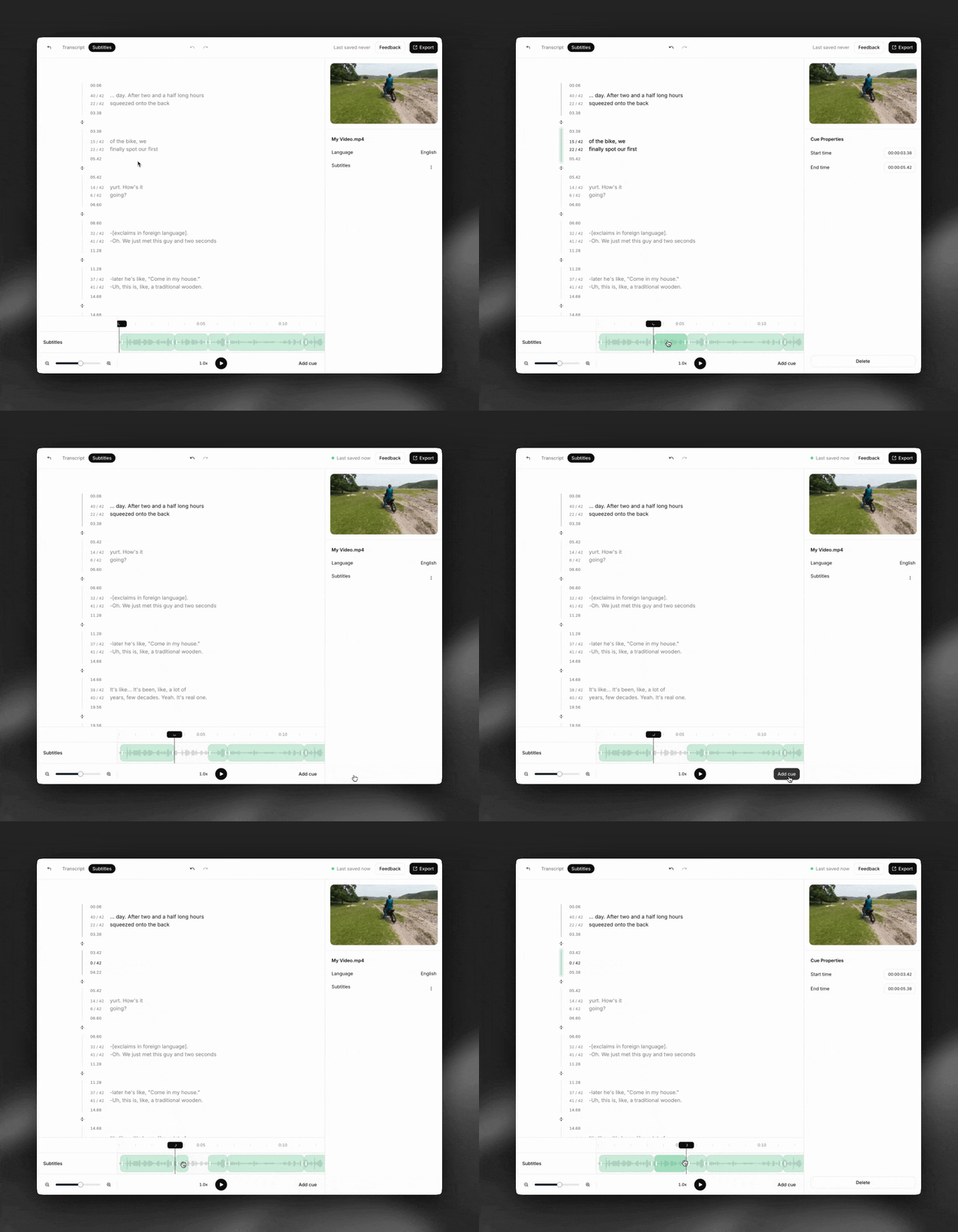
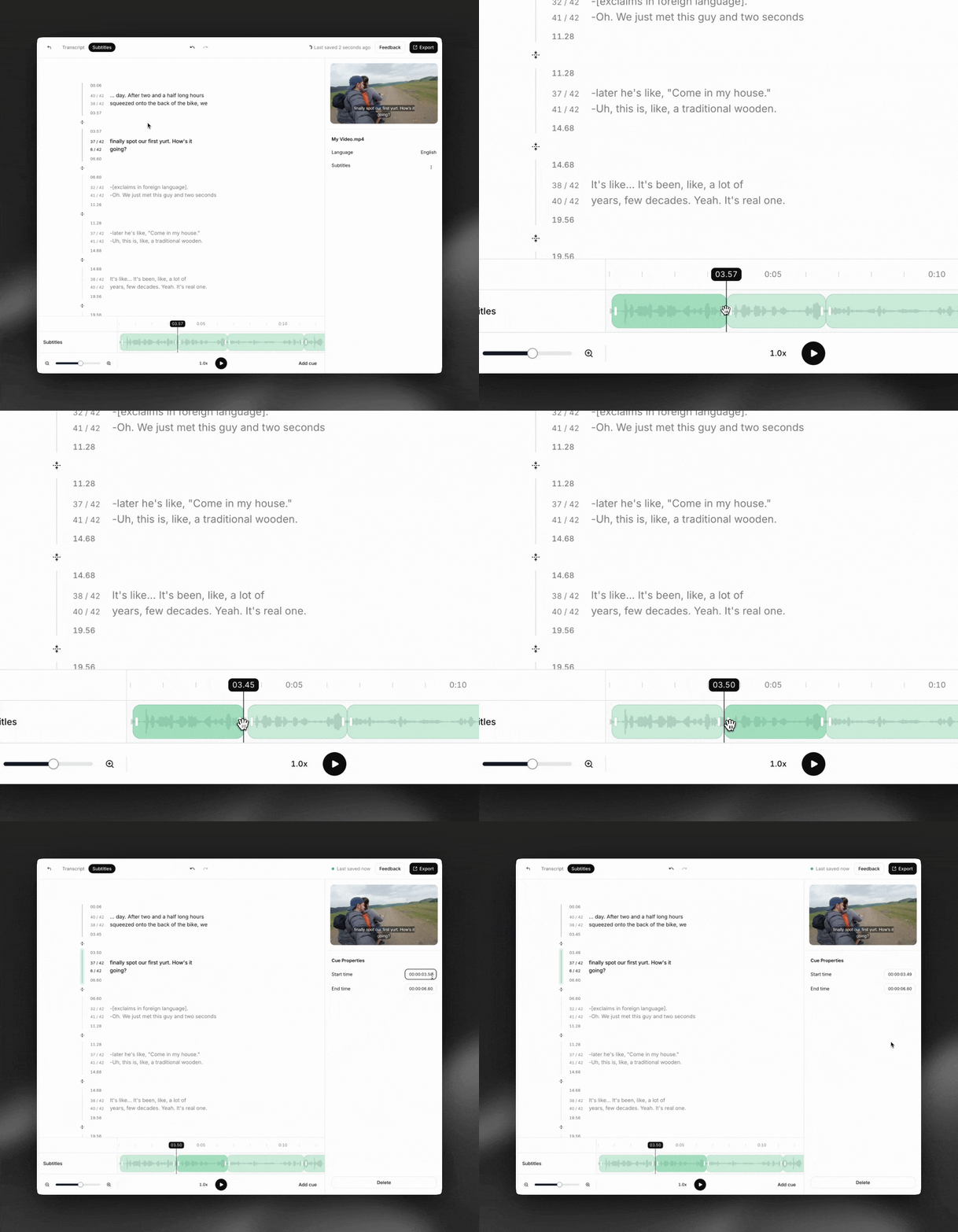
Drag the handles on the timeline to adjust the start and end timestamps for a cue. You can also type in exact timestamps in the panel on the right side of the screen.
Important: the transcript and subtitles for a video are completely separate from each other. Changes you make to subtitles (e.g. changing cue start/end times, adding/removing words, etc.) do NOT affect the transcription, and vice versa.
Split and merge cues
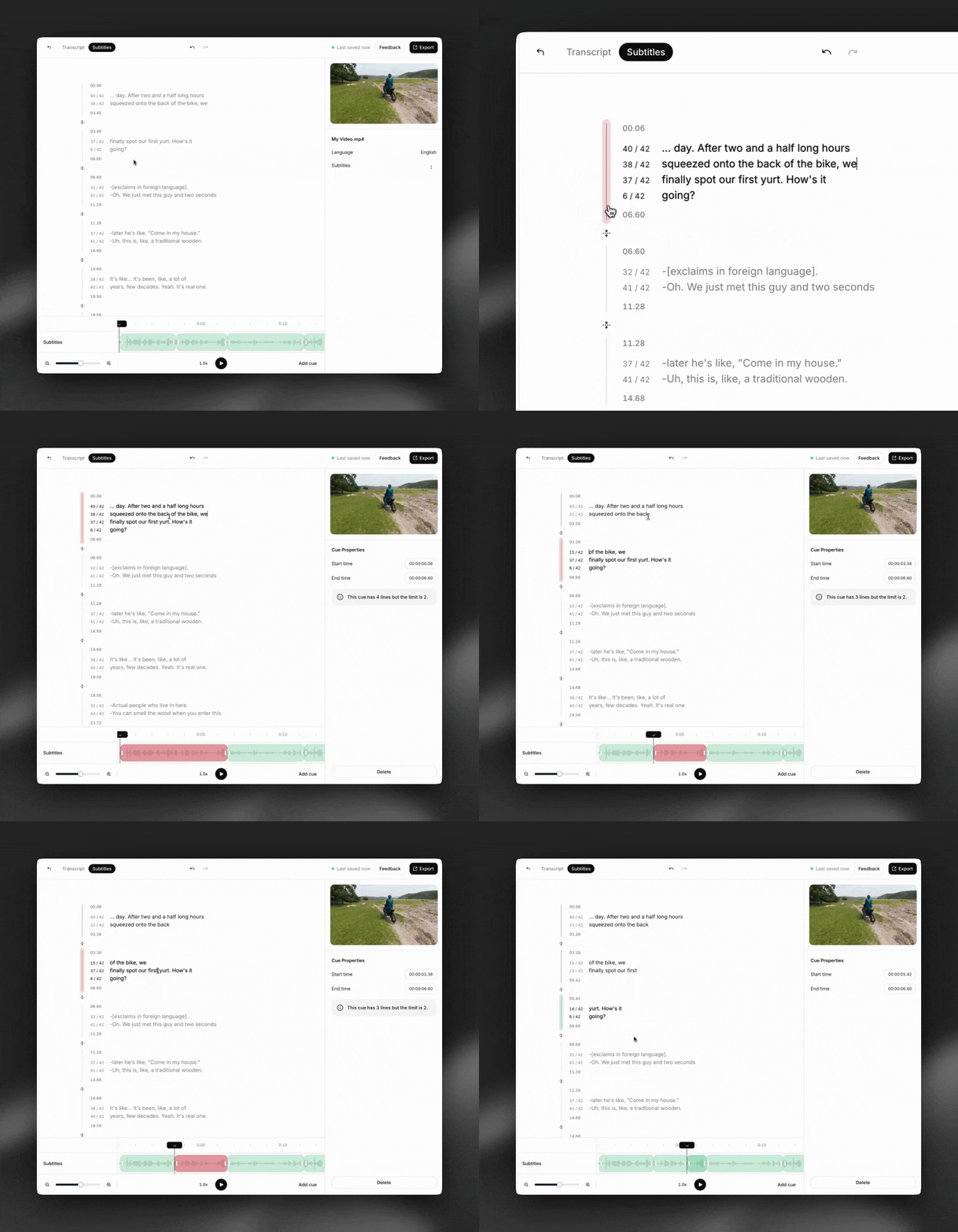
To split a cue, click in the text where you want to split and press Enter.
To merge two cues, click the ‘merge cues’ button.
Add or remove cues
To add a cue, click ‘Add cue’ and select a location on the timeline.
To delete a cue, select the cue and click ‘Delete’ in the panel on the right side of the screen, or press the Delete key.